
Agreements
First of all I render thanks to user JesperLindeberg in official discord server of IceWhale who investigate and generate a config file to install ZimaOS over BIOS motherboards. And in my personal case also they help me to config the device to install ZimaOS.
ZimaOS
ZimaOS is an Operating System designed by IceWhale, a Chinese company owner of CasaOS software and devices ZimaBoard and ZimaCube to create your own NAS.
With the base of CasaOS software, a web software to create personal cloud, they generate ZimaOS to provide the next level of a personal cloud software with adding the possibility of creating storage with multiple drives (RAID), give a multiple user accounts and a easy software to generate backups from other devices and third storage providers such as Google Drive and Dropbox.
ZimaOS is designed for a UEFI motherboard systems to avoid the limitations has BIOS motherboards as the capacity of hard disk volumes and because UEFI is more faster than BIOS.
So just after read, Can I install ZimaOS to build NAS with old computer that have a BIOS motherboard?
+ Short anwer, no 😞
- but... 😏🤭
Requirements
To install ZimaOS over BIOS we need some elements:
- Two USB sticks. To the Clover 2GB and for ZimaOS installer with 4GB.
- Balena Etcher software to generate bootable USB. Download
- Clover software and JesperLindeberg configuration to simulate an UEFI over BIOS. Download
- ZimaOS. Download
Steps to prepare Clover USB stick
After download and unzip the Clover file. You found a folder with CLOVER name, open and inside you can found this content:
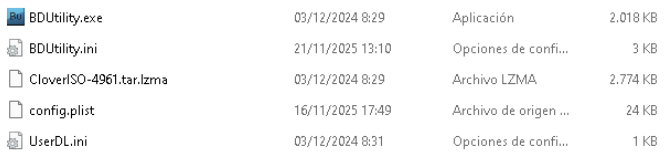
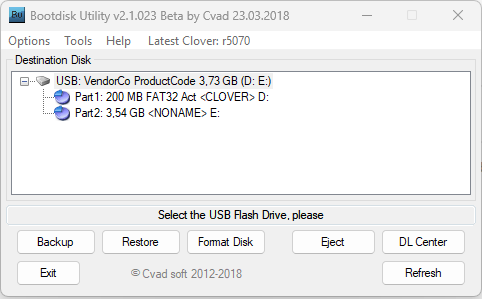
Click to executable BDUtility.exe and you can see the new window opened:
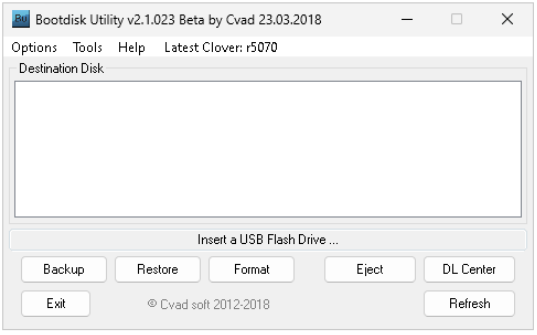
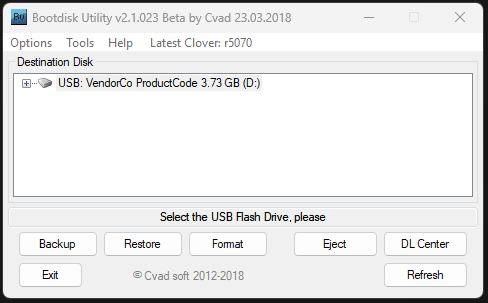
Now connect the USB stick were you are going to install Clover. And select the USB stick and the button Format:
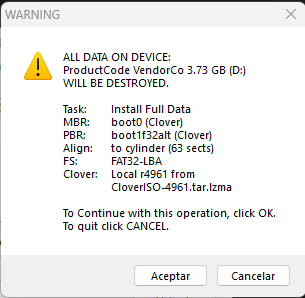
Now you can see a warning to confirm the erase task data of USB. Confirm to continue:
After wait the task format you have the Clover USB stick created:
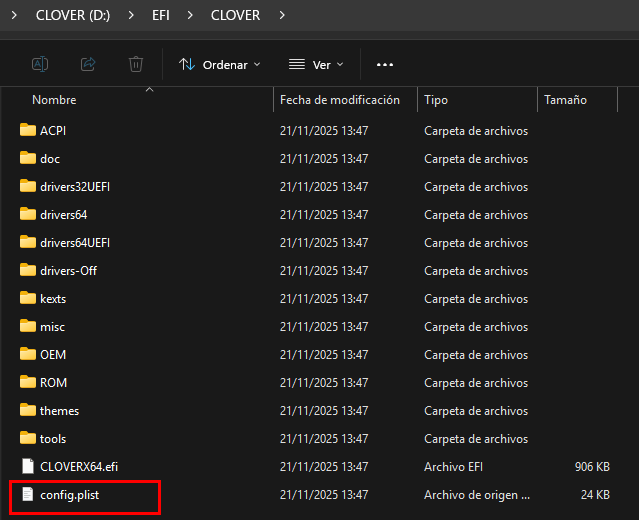
Now go to explorer and navigate to USB stick and subfolders EFI/CLOVER and replace the file config.plist with the config.plist located in the zip downloaded:
Steps to prepare ZimaOS USB bootable
Download Balena Etcher software and the ZimaOS from link (I tried .img and .iso version of 1.5.1 and booth worked me).
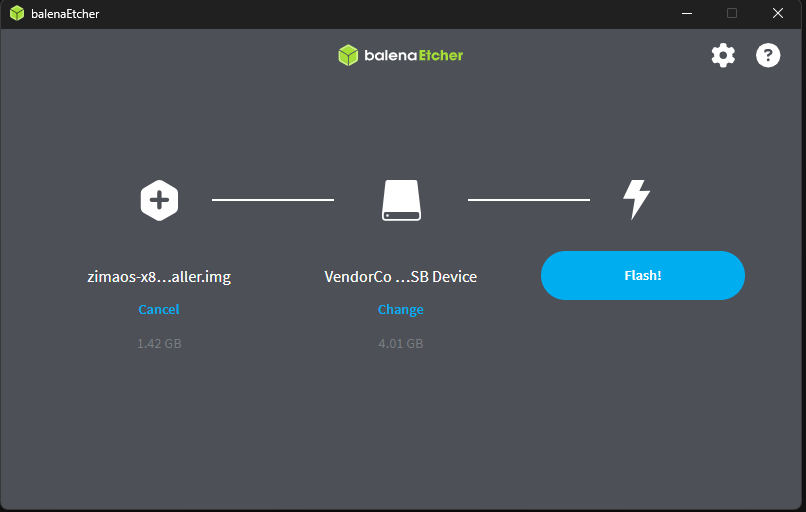
After downloads complete execute Balena Etcher, select the ZimaOS image, the second USB stick and clic to button Flash:
Steps to install ZimaOS
Prepare the boot order in the BIOS to be the USB the first device types and connect only the Clover USB stick. After boot with Clover stick connected you should be a menu like this:
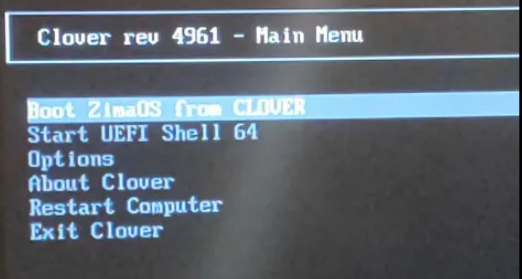
Now connect the ZimaOS installer USB stick and will be appear in menu the option Boot ZimaOS from EFI:
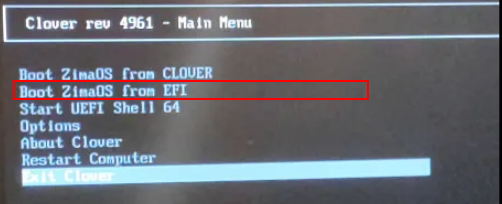
After select the option Boot ZimaOS from EFI will starts the installation:
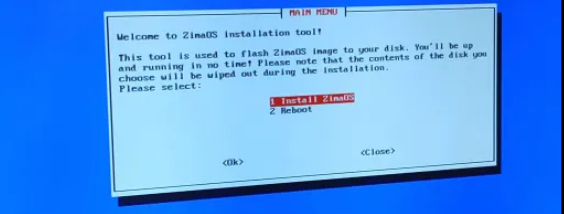
After answer some questions of installer (device to install, location). Starts the process of copy files:
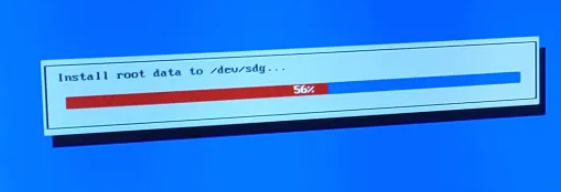
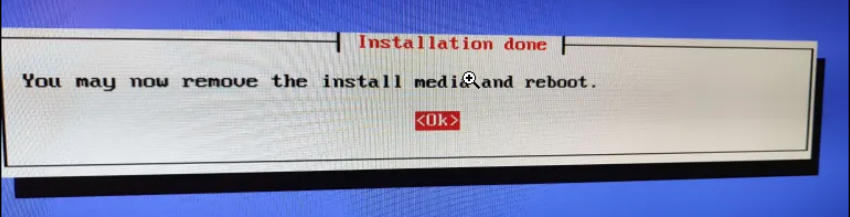
When the installation finish, you see the next message and should disconnect the ZimaOS installer stick (never the Clover stick!) and reboot the computer:
Finally, after the reboot the device you should see the header of ZimaOS:

Congratulations, you installed ZimaOS in a BIOS system!
Links
 Zima
Zima
 IceWhaleTech



Member discussion: